File Upload Service
This section describes the technical steps for sending a document to CDS, using the file-upload API endpoint on the Customs Declarations API. It also outlines the business processes associated with the file upload process, to provide the user with an understanding of how this section is linked with declaration processing on CDS.
The Document Upload UI is out of scope for this service guide and will be covered in a separate user guide produced by the CDS programme.
Background
HMRC has delivered the CDS Digital Secure File Upload Service to remove any need for manual processing of supporting documentation for declarations submitted on the Customs Declarations Service (CDS). Uploaded supporting documentation is automatically transferred into HMRC’s case management solution for review.
Document upload process
The file-upload endpoint will accept requests from the trader’s software to upload a number of files for a given declaration ID (an MRN like 23GBXXXXXXXXXXXXXX, where X represents a randomly-generated alphanumeric character), and will respond with a location (URL) where each file should be uploaded. The trader will then upload each file into an inbound file bucket.
The API will return a unique file reference code to the software for each file successfully submitted by the trader via a Digital notification. This file reference code can be used in future correspondence with HMRC. Please note that the submitter of the file will not receive a confirmation notification from back-end CDS systems that confirm the file has been matched to the declaration.
The CDS system uses the MRN to link documents uploaded via the Secure File Upload Service and the original declaration. HMRC Caseworkers will be notified when each document uploaded by the trader is received, and also when all files uploaded together as a group for a declaration have been received. When all files have been received, HMRC Caseworkers will review the documents they contain against the case for the declaration ID provided in the original API call.
The files uploaded by the trader will be scanned for malware and then stored in HMRC’s document repository system where they will be retained in accordance with HMRC policies (6 years plus current).
Initiating an upload and documentary controls
An authenticated trader may use the service at any time to submit files that contain supporting documents for their declarations (this is only relevant to Frontier Declarations). It is not necessary to wait for an email or DMSDOC notification from HMRC.
In the event that further information is required in order to process a declaration, the NCH Caseworker will notify the trader of the fact that there is a query using secure messaging. The response to the query may include submission of further documents. Other departments and customs authorities using CDCM including Border Force can also raise their own cases and access secure messaging to contact the trader.
In some cases, a trader may have also received a DMSDOC notification, triggered by the declaration risking process (Route 1 or Route 3), asking them to submit documents for a declaration that they have submitted.
It should be noted that the DMSDOC notification will not link to the Secure File Upload Service, but the documents to be uploaded are specified by the WCO StatementCode. The same applies to CSP notifications and the Customs Declarations Information API, both of which return the routing status for the declaration, but not which documents are required. In the event of a documentary check, a declarant may choose to upload the particular document that is expected to have triggered the control (for example, a licence document) or all documentation associated with the declaration.
Two-way secure messaging
The ‘CDS document uploads and secure messages’ service incorporates a secure inbox which can be used by CDCM case management system. Case workers from NCH, Border Force and Office for Product Safety and Standards (OPSS) can use this secure message service to raise a query on documents or goods in Documentary Control or Physical Control.
Replies to secure messages trigger the service level agreement case timer on CDCM.
Users can reply once or multiple times to messages. The messages are identified by MRN and case number, and by the authority name of the sender of the message.
Using the two-way secure message UI
This section provides a detailed overview of the steps users should follow to obtain access to the ‘CDS document uploads and secure messages’ service. The user will gain access to the UI service via GOV.UK, using their Government Gateway registration credentials. Note, a valid EORI and subscription to CDS is a mandatory requirement.
Selecting the message type
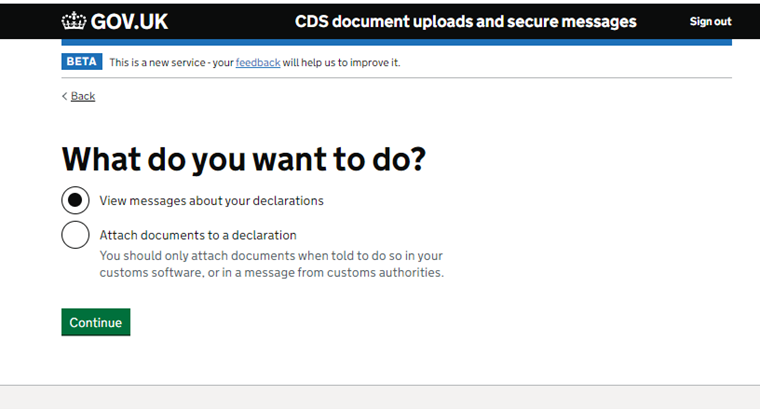
The user should select View messages about your declarations:
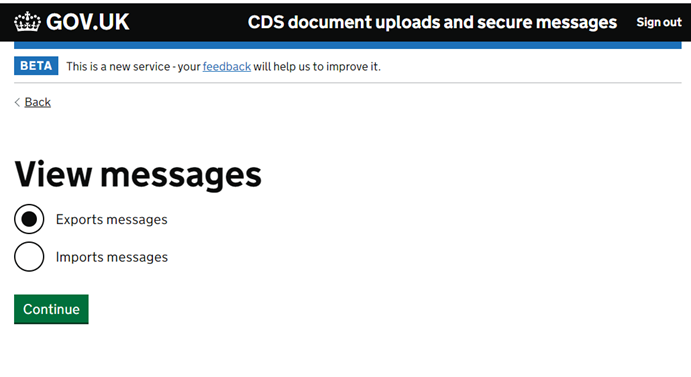
The user should then select the type of message that they want to see (exports messages or imports messages):


Using the secure inbox
The user’s secure inbox is a conversation-by-conversation view of messages, date and time stamped, with the most recent message at the top:

The user can open the thread, which will always be identifiable by the MRN in the subject line.
The body content of the message is the text written by the HMRC case worker on the CDCM system. Sometimes a reply-only action is all that is needed (e.g. no documents need to be uploaded).
If the user sends a message back to the customs agency using the messaging feature, they will get a confirmation page and a link back to the inbox they previously selected:

Actions requested in the query message
The query message may alert the user to actions such as to upload further documentation, amend a declaration, or take some action with another government agency. Replying to the query message alerts the case worker that documents are ready to be checked, without this the declaration will not progress.
Using the file-upload API endpoint
File upload is a multi-stage process. It starts with a single call to an endpoint on the Customs Declarations service, to request S3 upload metadata for sending one or more files. This call returns one or more URLs with related “Fields”. These, in turn, are split into separate upload requests to S3 (one per file).
High-level steps
Phase 1: request the URL
Step 1: initiate the upload
Start the sequence of steps with a call to the file-upload endpoint on the Customs Declarations service. This can be for one or more files. The payload schema can be found in the zipped folder of schemas and example messages in the Customs Declarations API documentation on the Developer Hub. Examples are provided below.
Step 2: parse the response
For each file specified in the initiate request, the response will contain:
- a one-time S3 URL, which can be used to upload a file
- a collection of name/value pairs in a “Fields” collection, to send with the file upload
Multiple individual sets of URLs and “Fields” collections may be returned. For example, if five files are initiated in the request above, then five URLs with five linked “Fields” collections will be returned in the payload response.
Phase 2: upload the files
Step 3: POST the file
For each file specified in the initiate request, compose a POST request to the S3 URL. In the fields of the form, include all the name/value pairs taken from the “Fields” collection in the initiate response payload. Include the actual file to upload as the final field in the form (the name of the field should be “file”).
Step 4: await notification
An asynchronous notification will indicate the success or failure of the upload. These are retrieved like declaration notifications. Failures can be due, for example, to invalid file types or to files being too large.
Process flow
The diagram below outlines the high-level functionality of Phase 2:

Detailed steps
Step 1: initiate the upload
Ensure the MRN is used as the Declaration ID within the payload.
Call the /customs/declarations/file-upload endpoint to initiate the file-upload process.
Here is a typical request payload:
<hmrc:FileUploadRequest xmlns:hmrc="hmrc:fileupload">
 <hmrc:DeclarationID>23GBXXXXXXXXXXXXXX</hmrc:DeclarationID>
 <hmrc:FileGroupSize>1</hmrc:FileGroupSize>
 <hmrc:Files>
   <hmrc:File>
     <hmrc:FileSequenceNo>1</hmrc:FileSequenceNo>
     <hmrc:DocumentType>Licence</hmrc:DocumentType>
   </hmrc:File>
 </hmrc:Files>
</hmrc:FileUploadRequest>
Rules for file initiation requests
- A maximum of 11 files may be initiated in a single request. To initiate two file uploads with no optional elements, for example:
<hmrc:FileUploadRequest xmlns:hmrc="hmrc:fileupload">
       <hmrc:DeclarationID>23GBXXXXXXXXXXXXXX</hmrc:DeclarationID>
       <hmrc:FileGroupSize>2</hmrc:FileGroupSize>
       <hmrc:Files>
         <hmrc:File>
           <hmrc:FileSequenceNo>1</hmrc:FileSequenceNo>
         </hmrc:File>
         <hmrc:File>
           <hmrc:FileSequenceNo>2</hmrc:FileSequenceNo>
         </hmrc:File>
       </hmrc:Files>
      </hmrc:FileUploadRequest>
The permitted file types are PDF, JPG/JPEG, PNG, and text, which correspond to the following MIME types (note that the type is determined from the file contents, not the extension):
- application/pdf
- image/jpeg
- image/png
- text/plain
Optional SuccessRedirect and ErrorRedirect elements (example below) may be added to each file upload to redirect when there is a successful or failed upload. This is intended for developers who are creating UI applications that interact with this endpoint. For API interactions, it can be ignored.
<hmrc:FileUploadRequest xmlns:hmrc="hmrc:fileupload">
          <hmrc:DeclarationID>23GBXXXXXXXXXXXXXX</hmrc:DeclarationID>
          <hmrc:FileGroupSize>1</hmrc:FileGroupSize>
          <hmrc:Files>
            <hmrc:File>
              <hmrc:FileSequenceNo>1</hmrc:FileSequenceNo>
              <hmrc:DocumentType>Licence</hmrc:DocumentType>
              <hmrc:SuccessRedirect>https://success-redirect.com</hmrc:SuccessRedirect>
              <hmrc:ErrorRedirect>https://error-redirect.com</hmrc:ErrorRedirect>
            </hmrc:File>
          </hmrc:Files>
        </hmrc:FileUploadRequest>
HTTP headers
The headers are described in detail in the file-upload endpoint section of the Customs Declarations API documentation on the Developer Hub. To summarise, they are:
| Header Name | Mandatory? | Example | Notes |
|---|---|---|---|
| Accept | Yes | application/vnd.hmrc.2.0+xml | 1 |
| Content-Type | Yes | application/xml; charset=UTF-8 | |
| X-Badge-Identifier | For CSPs | ABC123 | |
| X-Eori-Identifier | For CSPs | GB123456789000 |
- Accept headers by environment:
- Production - application/vnd.hmrc.1.0+xml
- Trade Test - application/vnd.hmrc.2.0+xml
- Trader Dress Rehearsal - application/vnd.hmrc.1.0+xml
See the screenshot below for an example of a request being sent using the Postman application.
Response codes
A successful initiate upload returns an HTTP 200 OK response code, with a payload containing an S3 Href and a Fields collection (one per file upload initiated — see step 2 below).
A failure is indicated by a 4XX or 5XX response code.
For an invalid XML payload, for example, an error code 400 is returned with the following body:
<errorResponse>
  <code>BAD_REQUEST</code>
  <message>Payload is not valid according to schema</message>
  <errors>
    <error>
      <code>xml_validation_error</code>
      <message>Error at line 13, column 13: no declaration found for element 'unknown'</message>
    </error>
  </errors>
</errorResponse>
For an internal server error, an error code 500 is returned with the following body:
<errorResponse>
  <code>INTERNAL_SERVER_ERROR</code>
  <message>Internal server error</message>
</errorResponse>
For other errors, see the Reference guide on the Developer Hub.
Step 2: parse the response
A typical response payload resulting from the first request would be:
<FileUploadResponse xmlns="hmrc:fileupload">
   <Files>
       <File>
           <Reference>3245a5c2-a128-4205-8a8d-f2dcdb549999</Reference>
           <UploadRequest>
               <Href>https://bucket-name.s3.amazonaws.com</Href>
               <Fields>
  <x-amz-meta-callback-url>https://some-callback-url</x-amz-meta-callback-url>
  <x-amz-date>20200811T081107Z</x-amz-date>
  <x-amz-credential>AKIAIHSAVV7BWA/209999/eu-west-2/s3/aws4_request</x-amz-credential>
  <x-amz-meta-upscan-initiate-response>2020-08-11T08:11:07.126Z</x-amz-meta-upscan-initiate-response>
  <x-amz-meta-upscan-initiate-received>2020-08-11T08:11:07.126Z</x-amz-meta-upscan-initiate-received>
 <x-amz-meta-request-id>n/a</x-amz-meta-request-id>
 <x-amz-meta-original-filename>${filename}</x-amz-meta-original-filename>
 <x-amz-algorithm>AWS4-HMAC-SHA256</x-amz-algorithm>
 <key>3245a5c2-a128-4205-8a8d-f2dcdb549999</key>
 <acl>private</acl>
 <x-amz-signature>0b0f92e7fb8ad67b5973711a7d059184349a2</x-amz-signature>
 <x-amz-meta-session-id>n/a</x-amz-meta-session-id>
 <x-amz-meta-consuming-service>customs-declarations</x-amz-meta-consuming-service>
 <policy>eyJleHBpcmF0aW9uIjoiMj....</policy>
               </Fields>
           </UploadRequest>
       </File>
   </Files>
</FileUploadResponse>
Note: When multiple files are initiated in the request, a single response that contains multiple File elements is returned. Each of these are then composed into separate POST requests to S3 in the next step.
Step 3: upload the file
Upload a file by:
- Executing an HTTP POST request that contains a form submission. The request should be sent to the URL that was specified in the
Hreffield in the response above. - Include all the name/value pairs from the
Fieldscollection in the form. - The
filefield that contains the file to be uploaded must be the last field in the submitted form. - Use multipart encoding (multipart/form-data).
- Each file size must not exceed 10MB.
- The one-time URL and associated metadata expires after 7 days. If the file is not uploaded in that time, then a new initiate request will be needed.
- See the AWS S3 documentation for more details including response and error codes.
If multiple files are specified in the initiate request, then there will be an equivalent number of File elements in the response. Each File element will contain a URL and a Fields collection, and should be used to compose a separate S3 upload request.
See the screenshot below for an example of a request being sent using the Postman application.
Step 4: await notification
A notification indicating the success or failure of the upload will be sent after a short period of time. These are sent like any other declaration notification. There is one notification per file that is uploaded to S3.
If declaration notifications are “pushed”, then file upload notifications will be pushed too. In this case, the ConversationId HTTP header will be set to the Reference element in the file-upload response.
For “pull” notifications, file upload notifications can be retrieved by using the ID that was in the Reference element in the file-upload response as the ConversationId.
Failure can occur, for example, because an uploaded file is too large, has an invalid file type, or contains a virus.
A typical successful notification is:
<Root xmlns="hmrc:fileupload">
  <FileReference>3245a5c2-a128-4205-8a8d-f2dcdb54296b</FileReference>
  <BatchId>904067f4-0da4-47b7-8702-66eb76c72d97</BatchId>
  <FileName>Sample for S3 upload.pdf</FileName>
  <Outcome>SUCCESS</Outcome>
  <Details>Thank you for submitting your documents. Typical clearance times are 2 hours for air and 3 hours for maritime declarations. During busy periods wait times may be longer.</Details>
</Root>
A typical failure notification is:
<Root xmlns="hmrc:fileupload">
  <FileReference>ff7c82a9-21b1-4f73-a60d-984c7d03324e</FileReference>
  <Outcome>REJECTED</Outcome>
  <Details>MIME type [image/gif] is not allowed for service: [customs-declarations]</Details>
</Root>
File upload capabilities in external test
Due to technical limitations, the file upload service in External Test is not fully integrated with the CDS back-end. This is to allow for automated resolution of controls without a requirement for manual intervention, as part of continued testing with external parties.
A documentary control can be triggered in External Test by using the appropriate ‘trigger word’ in the Goods Description field for the commodity code (e.g. timportsdocblocking). Subsequently, it is possible for users of External Test to upload a file via the file-upload endpoint. However, please be aware that these two processes will not be linked and the uploading of a file is not necessary to resolve an open documentary control in either External Test environment.
There are no current plans to deliver the Secure File Upload UI into either of the External Test services (Trade Test, or Trader Dress Rehearsal).
Functionality
The testing journey in the External Test environments is as follows:
- The user submits a request to the
customs/declarations/file-uploadendpoint. - A synchronous HTTP 200 response is returned to the user, along with a response body containing the S3 bucket location and other details required for the file upload. These are real S3 bucket details and none of the information is stubbed.
- The user uploads the file to the S3 bucket location in a POST request, using the details that were returned in step 2. This works for the following types of file:
- application/pdf
- application/msword
- application/vnd.ms-excel
- image/png
- application/vnd.openxmlformats-officedocument.wordprocessingml.document
- application/vnd.openxmlformats-officedocument.spreadsheetml.sheet
- image/jpeg
- text/plain
- The file will undergo virus scan checks and, if the scan is successful, the user will be notified via an asynchronous notification that the file upload has been successful. Otherwise, they will be notified that the file has failed the virus scan and has been quarantined. This notification will be received as a push or pull notification, depending on the presence or absence of a callback URL during the API subscription process.
Screenshots using Postman
The following screenshots show example requests and responses being sent and received by the Postman application.
Sample file-upload initiate request and response

Sample S3 upload request and response result with headers
